Trip.com Afterpay: How to Book Now & Pay Later


Planning a trip but worried about schedule changes? Trip.com's "Afterpay" option lets you secure your room now and pay only before you check in, with "Free Cancellation" for ultimate flexibility! This guide covers the benefits of paying later, a step-by-step booking tutorial, and pro tips for quickly finding free-cancellation room types to make your international bookings stress-free.
to Bali
to Singapore
to Shanghai
See all flights


What is Trip.com "Afterpay"?
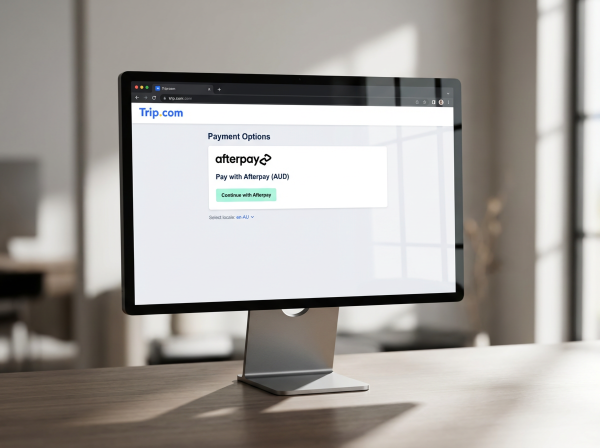
Trip.com Payment
Trip.com’s "Afterpay" option allows you to secure your hotel reservation immediately, while deferring the actual payment until a specified date shortly before your check-in.
Key Advantages of Trip.com "Afterpay"
- Minimizes Travel Uncertainty If your itinerary is still in the planning stages and you aren't 100% certain of your trip, "Pay Later" allows you to lock in your preferred room without an upfront financial commitment.
- Better Cash Flow Management Instead of making a large immediate payment, you can keep your funds flexible for other travel expenses—such as flights, visas, or daily costs—and only pay once your plans are finalized.
- High Flexibility and Easy Cancellation Most "Pay Later" plans are paired with a "Free Cancellation" window. If your plans change, you can cancel within the specified timeframe without any immediate out-of-pocket loss.
How to Find Trip.com Afterpay Stays on Trip.com?
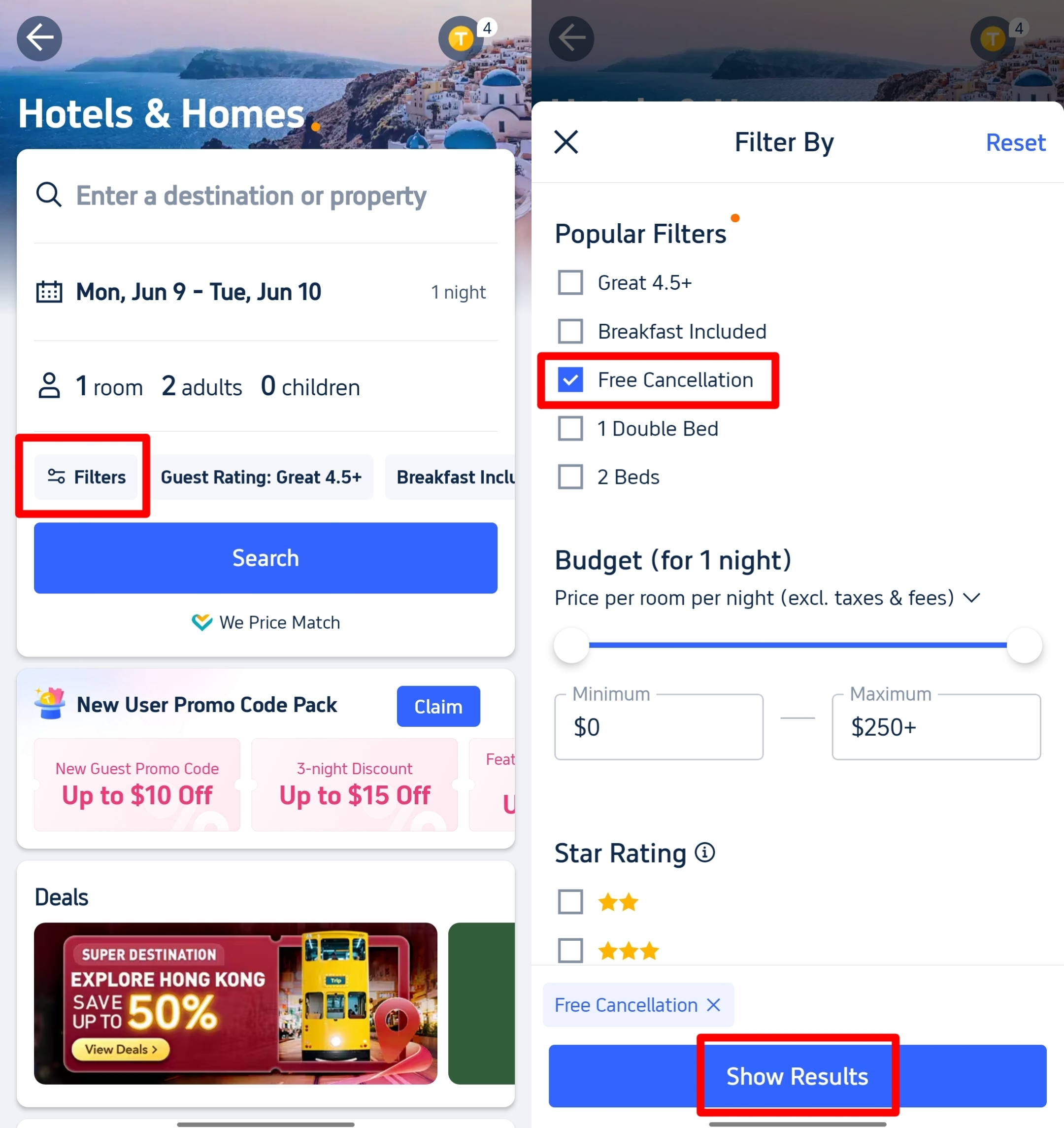
Finding stays that allow you to reserve now, pay later, and cancel at no cost is simple. Just follow these specific steps:
- Search: Navigate to Trip.com, enter your destination, travel dates, and the number of guests, then hit "Search."
- Open Filters: Locate and click the "Filter" button positioned at the top of your search results.
- Select "Free Cancellation": Scroll through the filter menu to the "Cancellation Policy" section. Under the "Popular Filters" category, check the box for "Free Cancellation."
- Apply: Click "Show Results" or "Apply" to refresh your list.
- Verify the Badge: Now, your results will be limited to flexible options. Look for the distinct "Free Cancellation" tag displayed on the hotel listing and within the specific room details.
How to use Trip.com Afterpay for "Pay Later" Bookings?
Once you’ve selected a hotel, follow these steps to lock in your stay without an immediate charge:
- Choose the Correct Room Type: This is the most important step! Ensure the room you select explicitly features:
- The "Free Cancellation" badge.
- A "Pay at Property" or "Pay Later" label.
- A clearly defined cancellation deadline (for example: "Free cancellation before 11:59 PM, Jan 15").
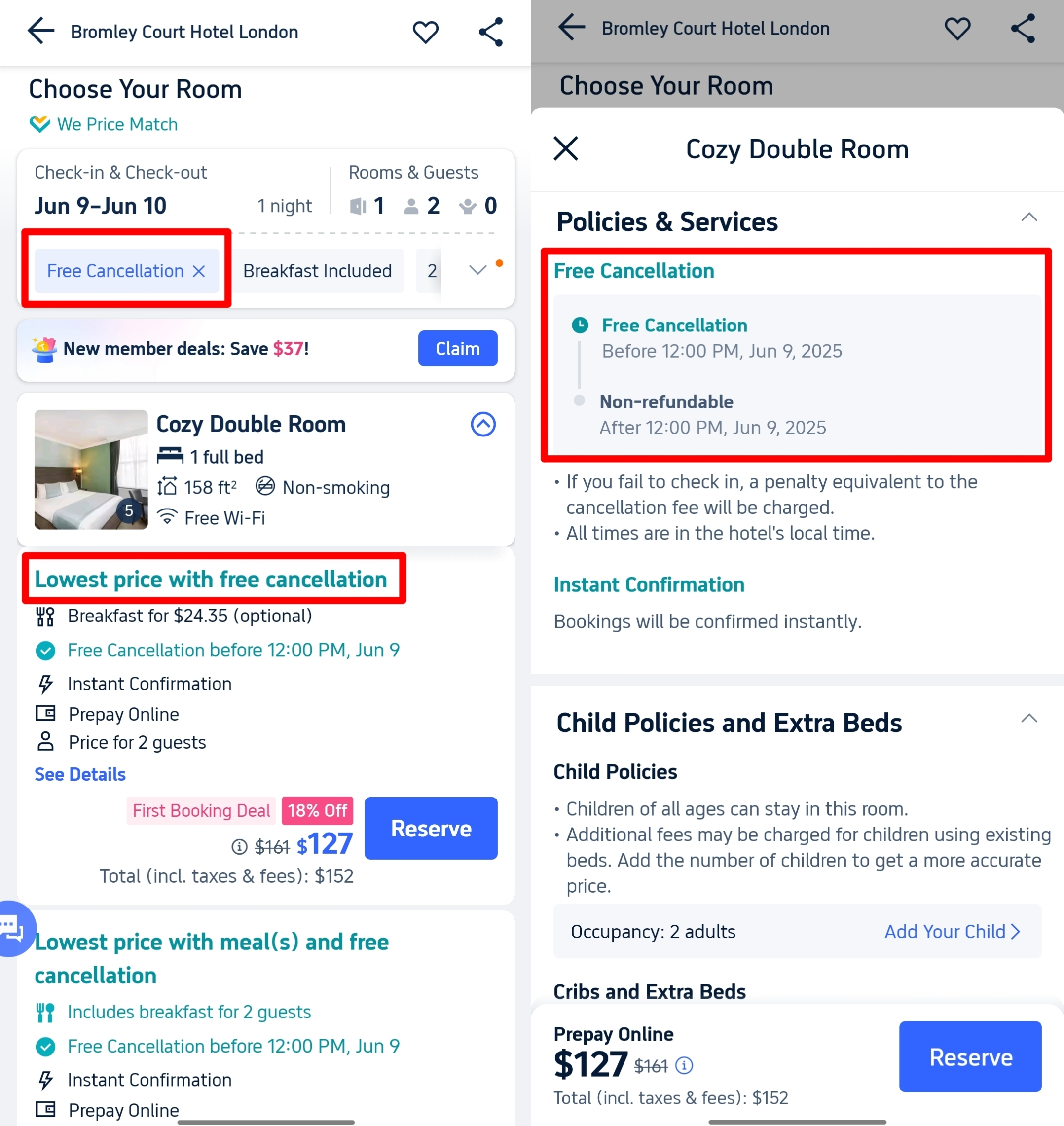
- Double-Check Policies: Click into the room details. Read the "Policies & Services" section like a hawk. This tells you the deadline for free cancellation and how you'll pay later (usually at hotel). Note this date!
- Hit "Reserve": Click the button.
- Enter Guest Info: Fill in the names of everyone staying accurately.
- Review EVERYTHING: Triple-check:
- Dates
- Room type
- That Cancellation Deadline
- Price
- Add any promo & coupon codes
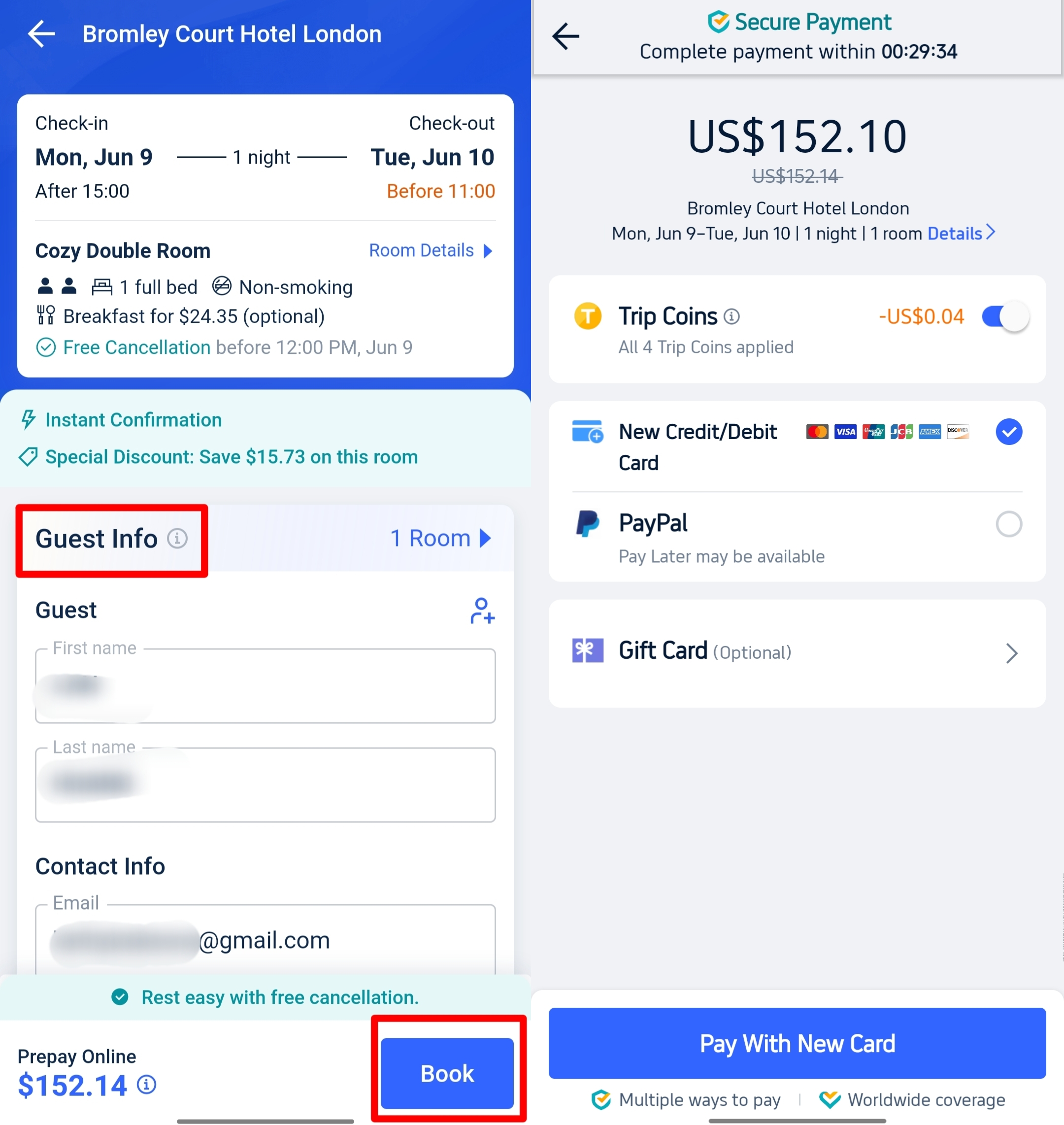
- Reserve (Not Pay Yet!): Click the final button "Book". You will NOT enter payment details here for Pay Later rooms!
- Confirmation: You'll get a booking confirmation email. Trip.com will usually email you a reminder close to your cancellation deadline.
How to Find "Free Cancellation" Bookings on Trip.com?

Online Payments - Willoughby Municipal Court
If a hotel offers "Free Cancellation," this information is usually displayed on the specific room details page. However, there is a "pro tip" to quickly filter for hotels that support this feature. Follow these steps (refer to the screenshots for guidance):
- Step 1: On the hotel search page, enter your destination, check-in dates, and the number of guests. Once the list of hotels appears, tap the "Filters" button.
- Step 2: Locate the "Free Cancellation" option under the search filters and click "Show Results."
By completing these two simple steps, you can easily identify room types that offer both flexibility and the option to Pay Later.
See all attractions
 2444 booked






How Long is the Trip.com Afterpay Period?

person using laptop computer holding card Via Unsplash (by rupixen)
There is no universal timeline for the Trip.com "Afterpay" (Free Cancellation) period. These windows vary significantly depending on the specific hotel and room type. You should always assume that every booking has its own unique rules—always verify the policy for your specific reservation.
Typical Cancellation Windows Include:
- 1 day prior to check-in (Very common)
- 3 days prior to check-in
- 7 days prior to check-in
- Same-day cancellation (Extremely rare; do not rely on this unless explicitly stated)
The Golden Rule: The only deadline that matters is the one listed in the "Policies" section of your specific room selection. If you miss this cutoff, the "Pay Later" agreement typically expires, and your card will be charged the full amount.
Top Global Hotels Recommendation
Top Global Hotels
Tokyo
Bali
Bangkok
See All Hotels










FAQs about Trip.com Afterpay
-
What is Trip.com Afterpay?
-
Does Trip.com actually accept Afterpay payments?
-
How do I find hotels with the “pay later” feature on Trip.com?
-
When do I pay for the booking on Trip.com?
-
Can I cancel for free on Trip.com?
Disclaimer: This article has been provided by an individual contributor or third party platform. If there is any discrepancy regarding the copyright, please contact us directly and we will delete the content immediately.
Trending Searches
-
Popular Attractions
-
eSIM/SIM card
-
Top Flight + Hotel Packages
-
Getting Around
- Forbidden City Tickets
- Universal Studios Japan
- Tokyo Disneyland Ticket
- Shanghai Disneyland Ticket
- Zhangjiajie National Forest Park
- Taronga Zoo Sydney minisite
- Puffing Billy Tickets
- Canton Tower
- Shanghai Tower
- Summer Palace Beijing
- Universal Beijing Resort
- Yu Garden
- Canggu Bali
- Hong Kong Disney Land
- China Harbin Ice and Snow World