How to Set Up My eSIM?
Before you get started: Check if your phone is eSIM compatible
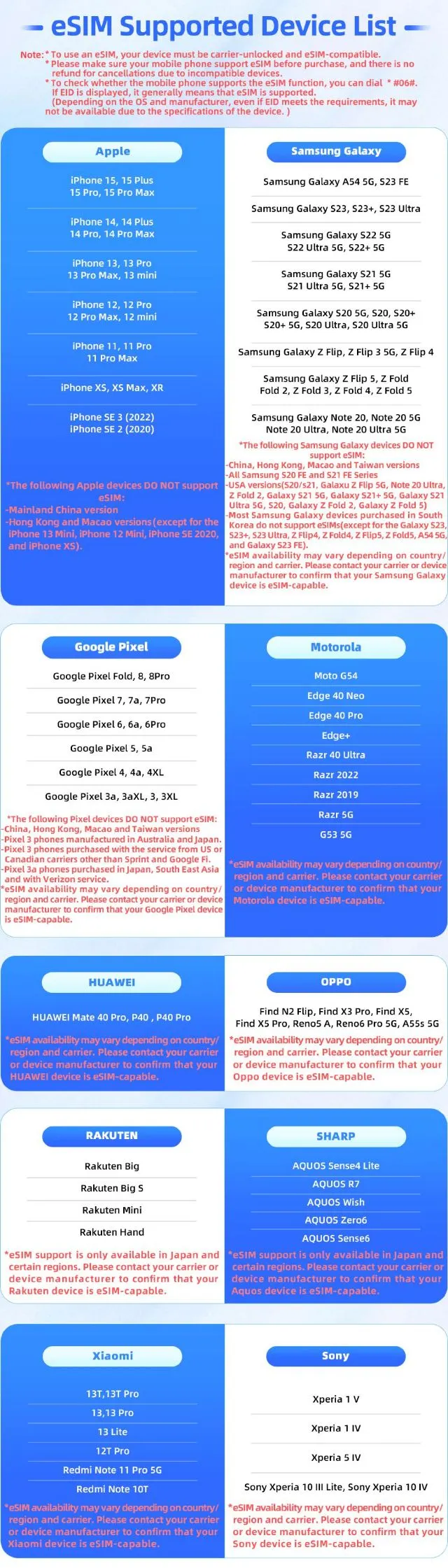
Mobile phone compatibility can vary depending on where you are. Before you make your purchase, please double-check that your device supports eSIM!
- Before you head out, double-check that your phone isn't network-locked so you're ready to stay connected on your next adventure!
How to check: Simply reach out to your carrier to confirm if your device is network-locked before you set off on your travels!
- Before you head out, double-check that your device is eSIM-compatible!
How to check: Simply dial *#06# on your phone's keypad. If you see an EID number, you're all set to use an eSIM! If there's no EID, your device doesn't support eSIM functionality.
This ensures a seamless experience when activating and managing your eSIM, so you can enjoy all the benefits without any compatibility worries.
You can also check out the compatible models below.👇
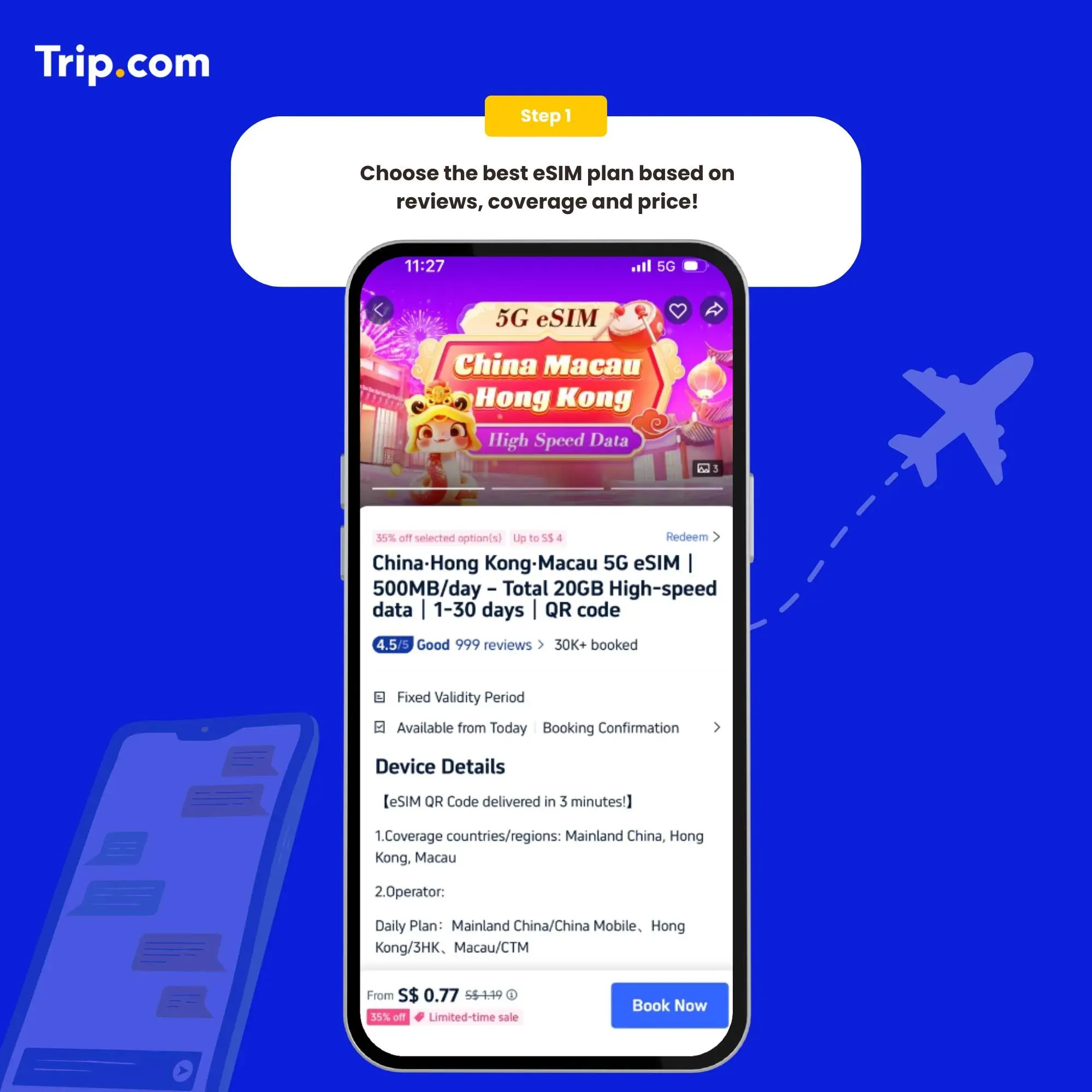
1. Find the perfect eSIM plan for your trip
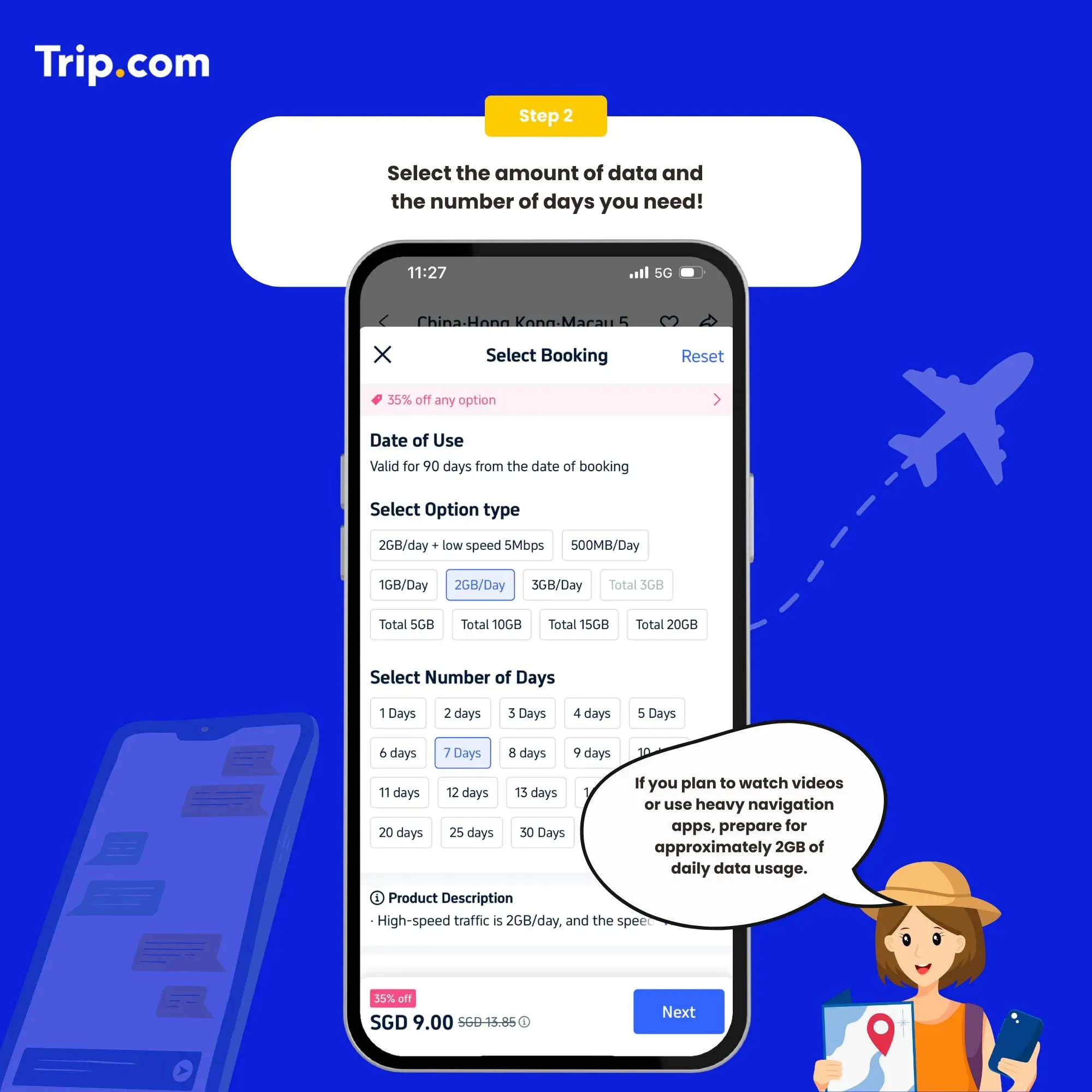
2. Choose your data plan
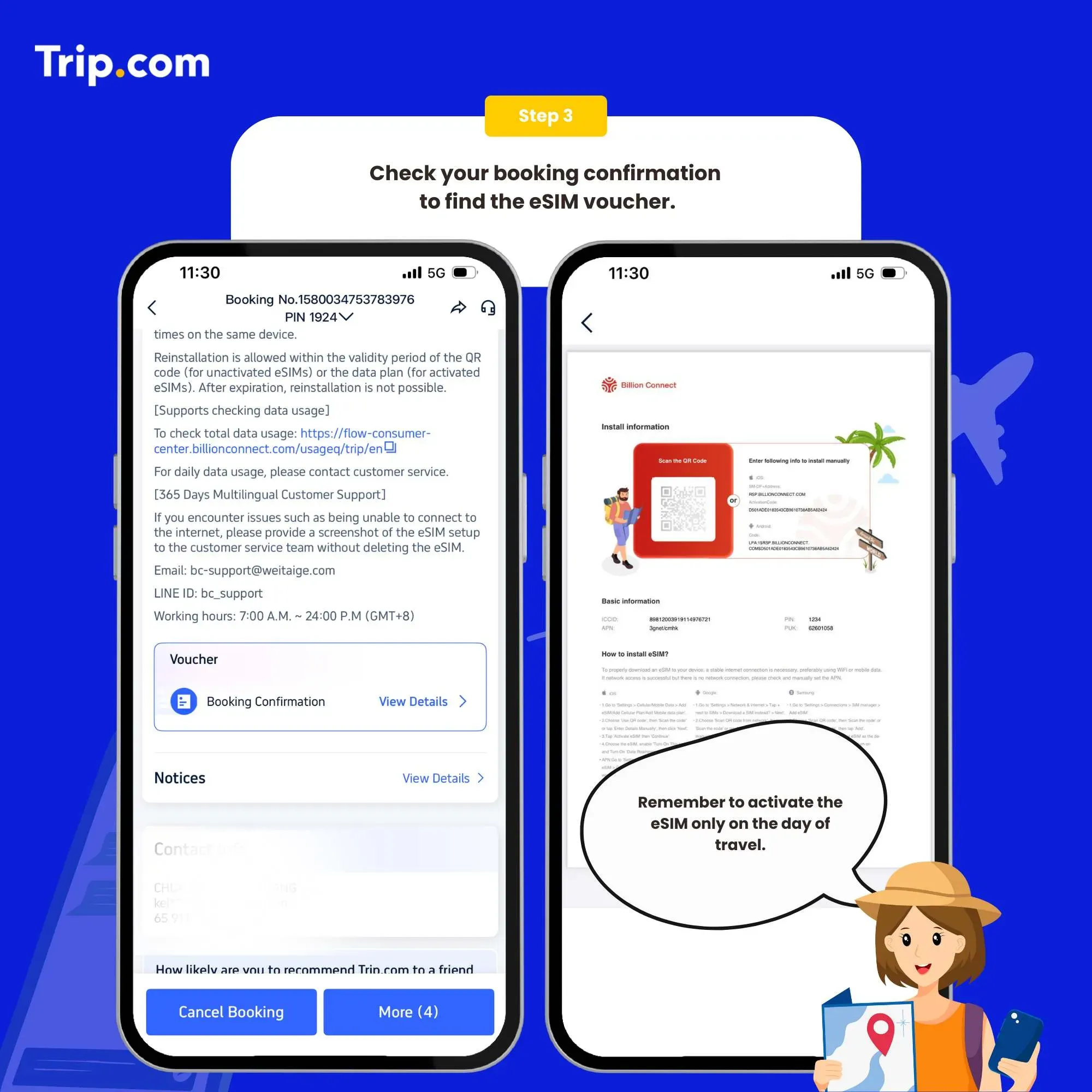
3. Look out for your activation email
You’ll receive an email with your eSIM activation details and a QR code, along with easy-to-follow installation instructions. Just a heads-up: you’ll need a stable internet connection to set everything up, so make sure you’re connected to WiFi or have mobile data ready to go before you start!
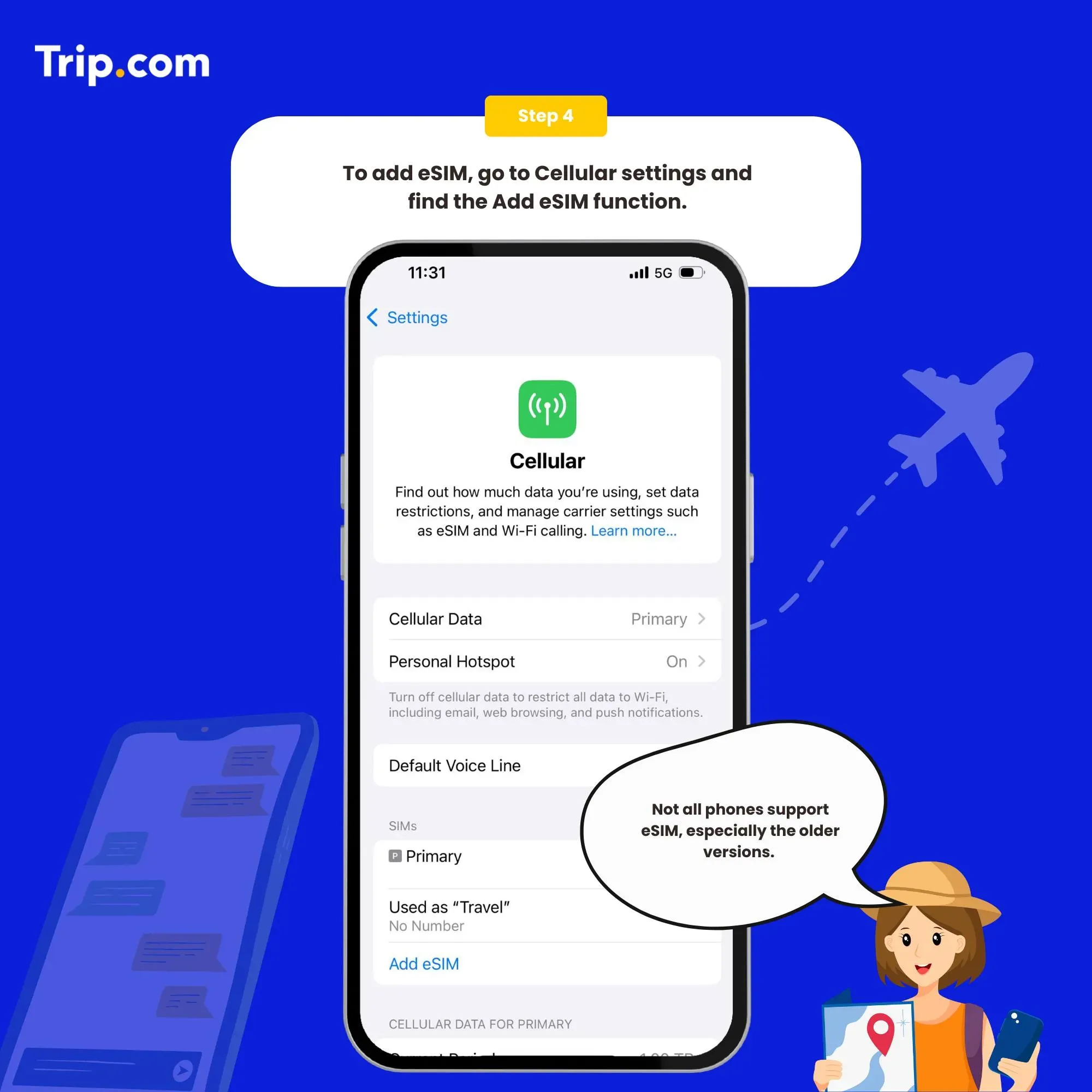
4. Add your eSIM
Follow these instructions:
- System - Settings - Cellular (iOS) / SIM Card Management (Android)
- Add a Cellular Plan (iOS) or SIM Card (Android)
- Confirm the download of your Cellular Plan (iOS) or SIM card (Android)
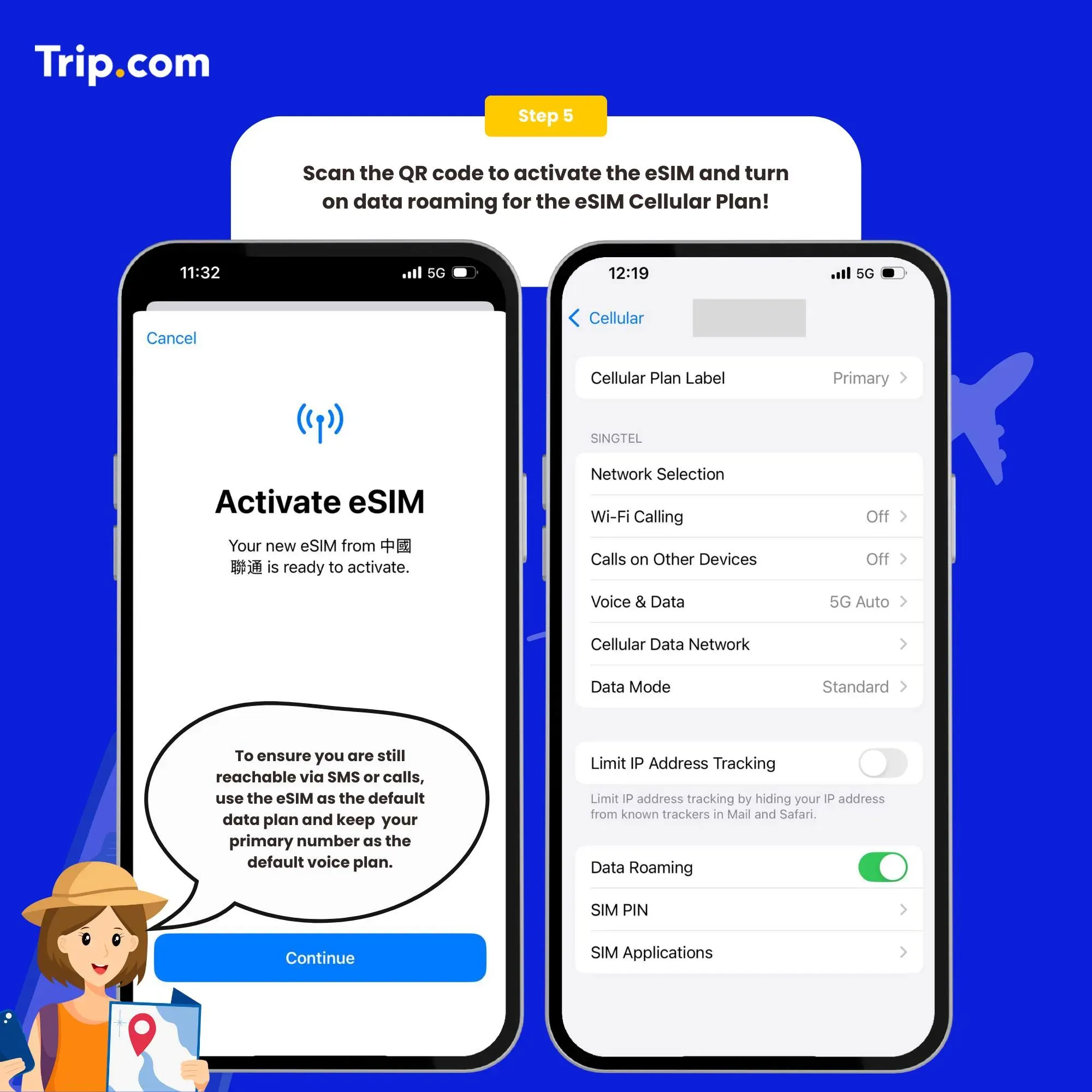
5. Get Connected
Scan the QR code to activate (or manually enter the SM-DP+ address and activation code)
Once the download is complete, go ahead and turn off your primary card if you haven't already. Then, simply enable your new Cellular Plan (iOS) or SIM Card (Android) to get started!
We recommend keeping your eSIM disabled until you reach your destination. Once you arrive, simply enable your eSIM and turn on data roaming to connect to the network—then you're all set to start browsing!
How do I close this?
Head over to Cellular (iOS) or SIM Card Management (Android) and simply tap to toggle off your Cellular Plan (iOS) or SIM Card (Android). The steps to enable or disable them are exactly the same!
Note
- If you're still not connected after enabling it, try toggling airplane mode on and off, or simply restart your phone.
- If you run into any issues, like an activation failure, please reach out to Customer Service before deleting your eSIM. (Heads up: an eSIM can only be installed once on a single device. If you remove it, you won't be able to add it back and will need to purchase a new one.)
You're all set! Now you can hop online and enjoy the convenience of your eSIM plan wherever your travels take you.
How to Purchase an eSIM on Trip.com
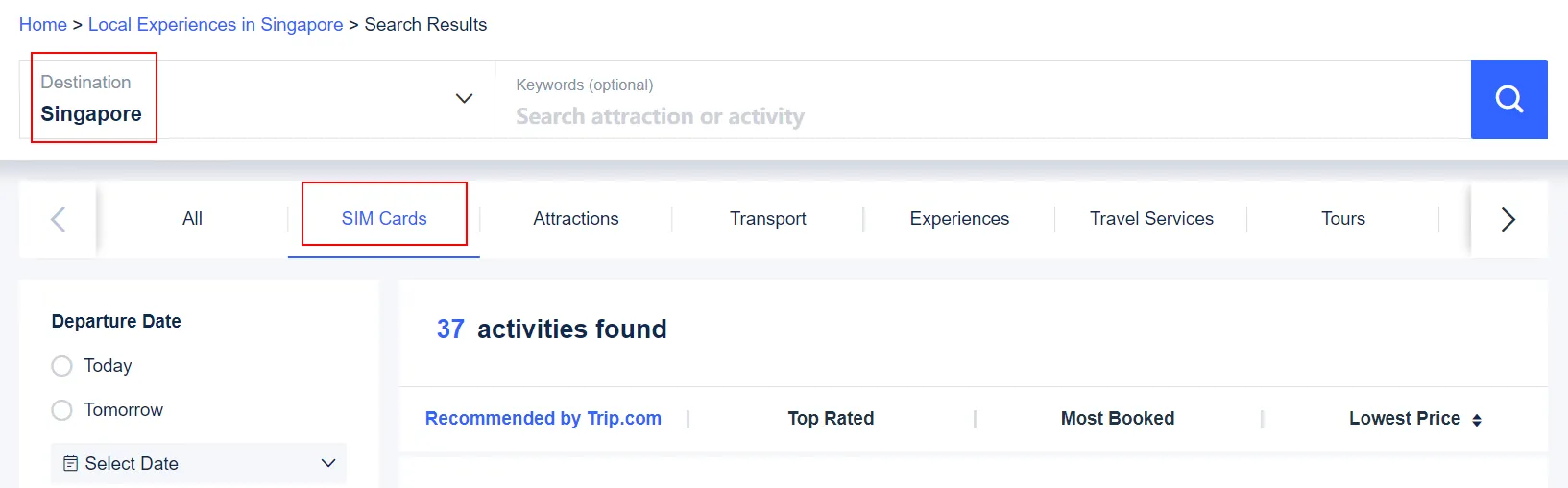
1. Browse eSIM options for Singapore
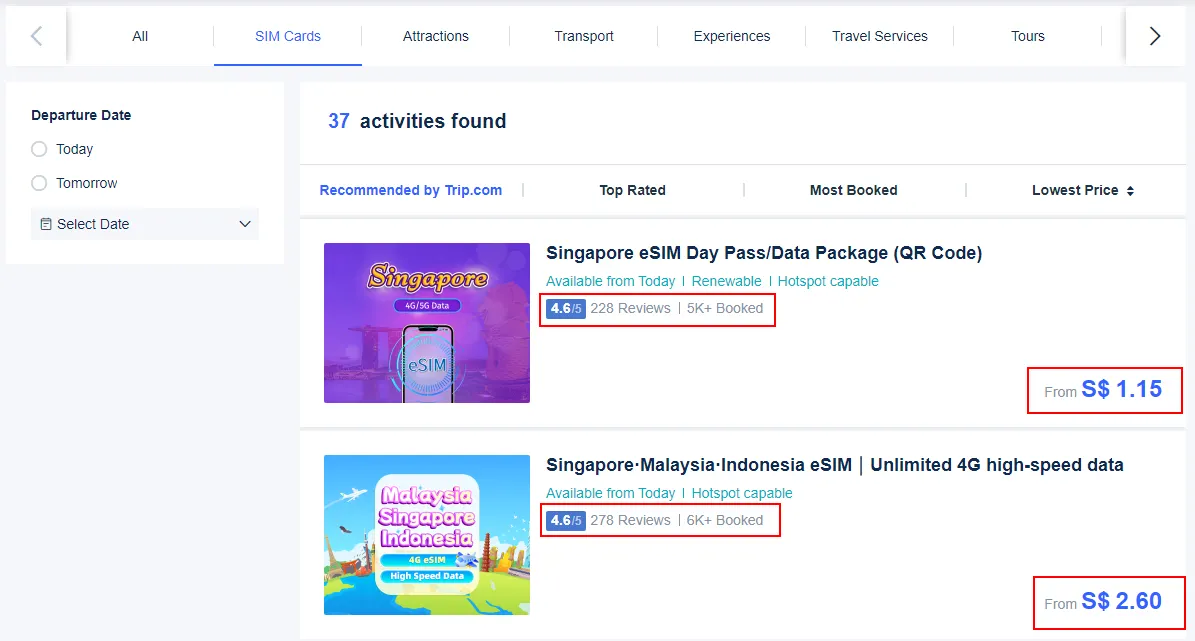
Use the search bar to look for "Singapore," or head over to the "SIM Cards" section. You can also click here for quick access.
2. Choose your eSIM plan
Explore our available eSIM plans for Singapore. Easily compare options based on data ratings, customer reviews, booking popularity, and price to find the perfect fit for your trip.
3. Pick and book
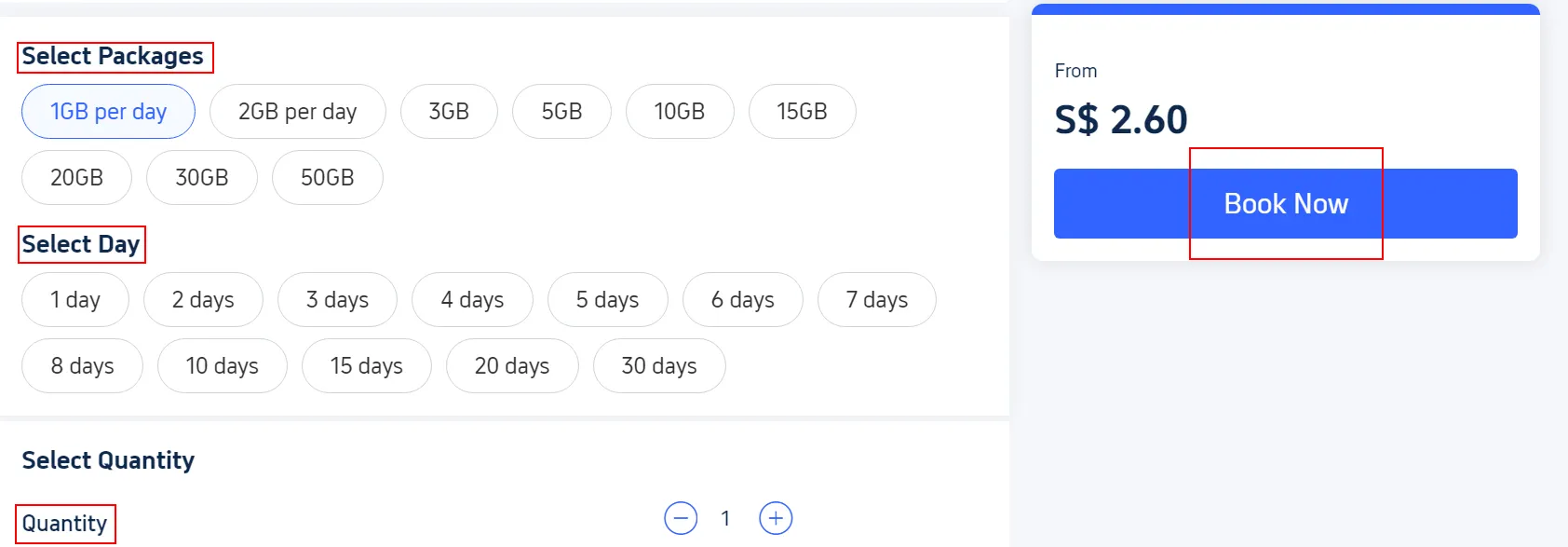
Choose the data plan, validity period, and quantity that best suit your travel needs, then simply click “Book Now.” Just follow the checkout steps to enter your details, and you’re all set to complete your purchase!
4. Receive your eSIM details
Once you've completed your purchase, keep an eye on your inbox or app notifications—we'll send over your eSIM activation details, including a handy QR code, so you're all set for your trip!
Recommended Hotels in Singapore