How to Confirm Trip.com Booking? Access & Manage Guide

Once you've booked your flights, hotels, or train tickets on Trip.com, you might be wondering, "Is my booking confirmed?" or "How can I check my booking status?" Don't worry! This guide will help you easily check your Trip.com bookings, understand your confirmation, and troubleshoot any common issues that might pop up.
With this guide, you'll have total peace of mind and the confidence of knowing your journey is safe.
to Bali
to Singapore
to Shanghai
See all flights


Understanding Your Booking Status on Trip.com

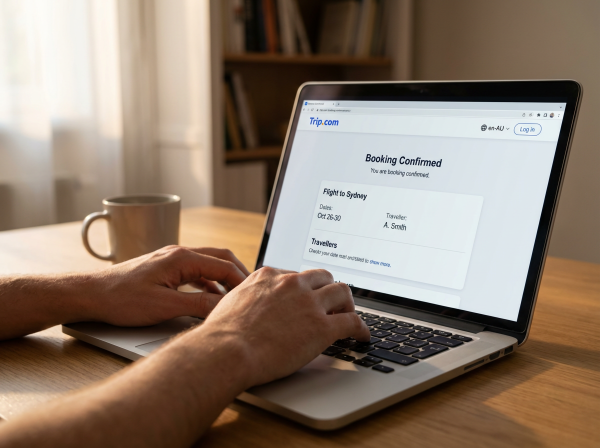
Trip.com Laptop Screen
Once you've booked your trip, you'll see specific statuses in your account. Here’s a complete breakdown of what they mean:
🟡 "Pending" Status
- What this means for you: Your payment is being processed or is awaiting confirmation from the service provider.
- What to do: Please wait for up to 24 hours. If the status remains "Pending," feel free to contact Trip.com customer service.
🟢 Status "Issued" / "Confirmed"
- Here's the exciting news for you: Your booking is successful and ready to kickstart your adventure!
- Action Required: Download your e-ticket or hotel voucher for your reference.
🔴 Status "Cancelled"
- What this means for you: Your booking has been canceled, possibly due to a payment failure or other issues.
- What you can do: Reach out to Trip.com customer service team for clarification or simply try booking again.
Status | What it means for you | What You Need to Do |
Awaiting Payment | Your payment hasn't been completed yet. | Complete your payment to secure your adventure! |
Delayed | Your payment is being processed. | Please allow up to 24 hours. |
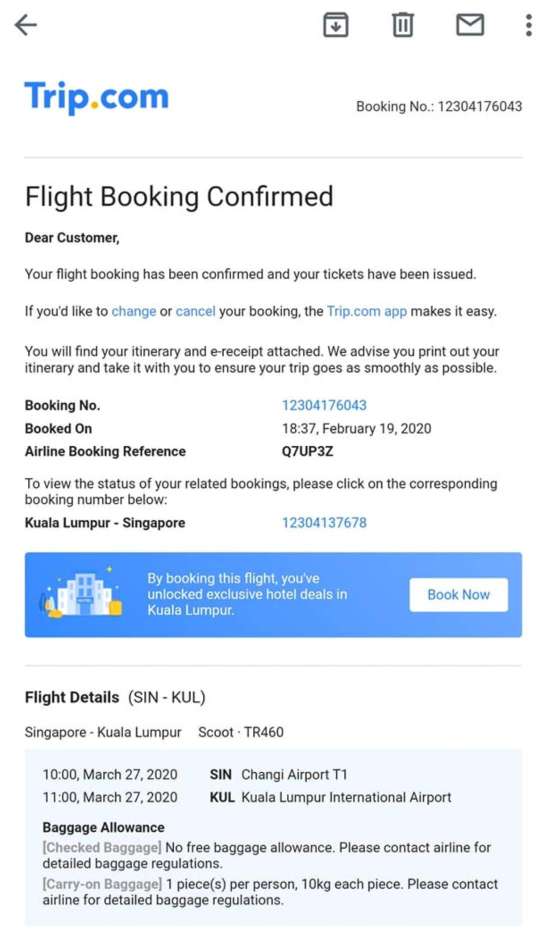
Confirmed/Issued | Booking successful! | Download your e-tickets or hotel vouchers. |
Canceled | Your booking has been canceled. | Feel free to reach out to our customer service team for any clarification. |
Step-by-Step Guide: How to Check Your Bookings on Trip.com App & Website
Method 1: For Logged-in Users (Recommended)
- Open the Trip.com app or website.
- Log in to your account.
- Click the "My Bookings" menu on the homepage.
- Your adventure awaits! Find your booking and click to discover all the exciting details.
Method 2: For Guest Users (No Login Required)
Trip.com Booking
- Head over to the "Check Bookings" page on the Trip.com website.
- Please enter your booking number and the email address you used when booking.
- Click "Search" to view your booking status.
See all attractions
 2419 booked






How to Check Your Booking Confirmation for Every Type of Booking?

Flight Tickets: Finding Your PNR Code and E-Ticket
- PNR Code: A unique code from the airline that you'll need for online check-in.
- How to find it:
- View your booking details on Trip.com.
- You'll usually find your PNR code right at the top of your e-ticket.
Hotel Bookings: How to View and Download Your Hotel Voucher
- Hotel Voucher: The document you'll need to check in at your hotel.
- How to Download:
- Check out your hotel booking details on Trip.com.
- Click the "Download Voucher" button to save it to your device.
Top Global Hotels
Tokyo
Bali
Bangkok
See All Hotels










Train Tickets and More
- For train tickets, the process is just like booking a flight. You'll receive a booking code that you can use to check in.
What to Do If You Encounter a Problem?

- My booking isn't showing up in "My Bookings": Solution: Make sure you're logged into the right account. If your booking still isn't showing up, try using the guest search option to find it!
- I've already paid, but the status is still "Pending" after more than 24 hours: Solution: Reach out to Trip.com customer service to confirm that your payment has been processed.
- Can't find your PNR code on the airline's website?: Solution: Please wait up to 24 hours after your payment. If it still doesn't appear, feel free to reach out to Trip.com for further assistance.
FAQs about Trip.com Booking Confirmation
-
What is a Trip.com booking confirmation?
-
How do I receive my booking confirmation?
-
Can I print or save my Trip.com booking confirmation?
-
What should I do if there’s an error in my booking confirmation?
Disclaimer: This article has been provided by an individual contributor or third party platform. If there is any discrepancy regarding the copyright, please contact us directly and we will delete the content immediately.
Trending Searches
-
Top Flight Routes
-
Latest Flight Deals
-
eSIM/SIM card
-
Trip.com FAQs
- Trip.com Reviews
- Trip.com Cancellation Policy
- Trip.com Payment Methods
- Trip.com Phone Number
- Trip.com Check In
- Trip.com Ticket Issued Status
- Trip.com Change Passport
- Trip.com Customer Support
- Trip.com Membership
- Trip.com VIP Lounge Access
- Trip.com Baggage Allowance
- Trip.com Flight Ticket
- Trip.com Hotel Refund
- Trip.com Flight Change
- Trip.com Seat Selection
- Trip.com E-Receipt
- Trip.com E-Ticket
- Trip.com Flight Cancellation
- Trip Coins
- Hotels near Madrid Barajas Airport