How to Delete an eSIM: Step-by-Step Guide for iPhone & Android

If you travel abroad often, you're probably familiar with using an eSIM. It’s so convenient to buy a package in advance and just activate it the moment you land at the airport. But once your trip is over, you might find yourself wondering: should I delete the eSIM I’m no longer using, and if so, how do I actually do it?
For those who have just returned from traveling abroad and still have an eSIM on your phone, it’s not as complicated as you might think. In this article, Trip.com has compiled a complete guide on how to manage your eSIM from start to finish.
to Bangkok
to Manila
to Shanghai
to Tokyo
to Seoul
See all flights


Why is eSIM the top choice for international travelers?
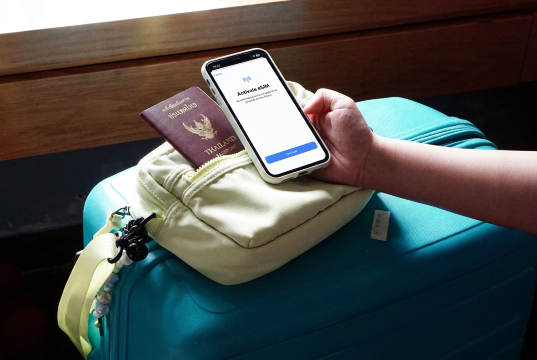
An eSIM is a digital SIM embedded in your device, allowing you to use the internet abroad directly without needing to insert a physical plastic SIM card like we used to.
The biggest highlight is that you don't need to remove your main SIM card, allowing you to keep your number active for important calls or SMS while using an eSIM for data in your destination country, provided your device and carrier support dual SIM functionality.
How is an eSIM different from a traditional SIM card?
For a physical plastic SIM card, you'll need to insert the actual card into your phone's SIM tray, but an eSIM is downloaded directly to your device instead. Because of this, most of the setup process is done via a QR code, your carrier's app, or through your phone's settings.
For travelers, we think the advantage of an eSIM is that you don't have to worry about keeping track of tiny SIM cards while on the go, and you don't risk losing your main SIM while traveling abroad. Plus, some phone models can even manage multiple eSIMs, making it a top choice for travelers.
When should you delete an eSIM? Situations you need to know
Actually, you don't need to delete your eSIM every time you're done using it. If it's an expired travel plan that isn't causing any issues, you can just keep it there. However, there are some situations where deleting it is the better option.
- Before selling or giving your phone to someone else, it's important to properly manage your eSIM so your SIM profile doesn't stay on the old device and end up in someone else's hands.
- After transferring your number or package to a new device, once the eSIM has been successfully moved, you should delete the eSIM from your old device.
- Switching providers: In this case, you should distinguish between deleting an eSIM and canceling your service, because simply removing the profile from your phone doesn't end your package or contract with your mobile carrier.
- Once you're back from your trip abroad, if you have a single-use travel eSIM that has expired, you can delete it to tidy up your SIM list.
How to Delete an eSIM on Any iPhone
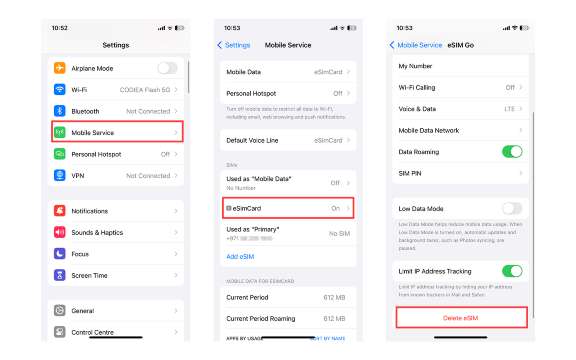
Image source: esimcard.com
Deleting an eSIM on your iPhone is easy and can be done right from the Settings menu. The process is quite convenient these days! Apple notes that if you only have one eSIM, you can simply choose to delete it. However, if you have multiple plans, you'll need to select the specific plan you want to remove before you can delete the eSIM.
Step-by-step guide to deleting an eSIM on iPhone (iOS 16 and later)
- Open Settings
- Tap Cellular or Mobile Data
- Select the eSIM you want to delete
- If there is only one package, select Delete eSIM
- If you have multiple packages, please select the desired number or package first, then tap Delete Plan.
- Confirm the deletion as shown by the system
The exact menu name might vary slightly depending on your device's language settings and iOS version, but you'll generally find it under Cellular or Mobile Data.
Important: We don't recommend deleting your eSIM from your device immediately after your trip ends, as you might run into issues with your usage plan. It's best to double-check your charges and plan details before you go ahead and delete or cancel anything.
How to delete an eSIM on iPad
If you have an iPad model that supports Cellular and eSIM, you can also manage it directly from the Settings menu. Here’s how:
Settings > Cellular Data > Select the desired eSIM package > Delete eSIM / Delete Plan
Apple outlines the same steps for iPad: if you have only one package, you can select Delete eSIM immediately, but if you have multiple packages, you must select the correct one before deleting.
Troubleshooting: What to do if an eSIM still appears after you've deleted it from your iPhone?
If you've already deleted it but still see the network name or messages about your eSIM, don't panic! What you're seeing doesn't always mean the eSIM is still active. Try checking first if
- Is the eSIM you're deleting the correct package?
- Are there any other SIM card or eSIM packages available?
- Try restarting the device and check again.
- If you're having trouble activating the network, contact your provider before deleting the eSIM again.
If your screen shows "No SIM" after deleting an eSIM, it might just be a notification that there's no active SIM in your device at the moment—it doesn't mean your phone is broken!
If I have multiple eSIMs, how do I delete them?
If you're using multiple eSIMs, especially if you're a frequent traveler visiting several countries, I highly recommend naming each plan right when you install it—like "Japan Trip," "Korea Trip," "Europe Trip," or "China Trip." That way, when it's time to delete them, you won't accidentally remove your main number!
On an iPhone with multiple eSIM packages, go to Settings > Cellular, tap the package you want to remove, and then select Delete Plan by following our recommended steps.
How to Delete an eSIM from Android
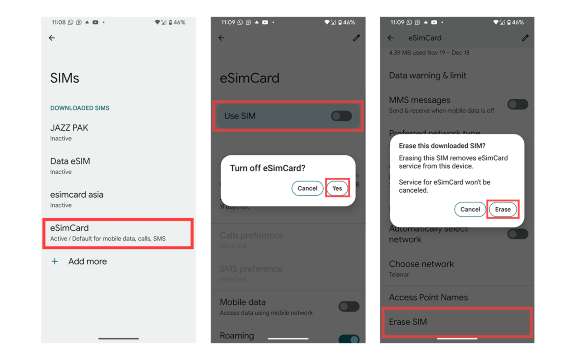
Image source: esimcard.com
How to delete an eSIM on Samsung Galaxy
For Samsung, go to Settings > Connections > SIM manager. From this screen, you can manage the eSIM and SIM cards installed on your device. Samsung notes that the SIM manager menu is used to manage connections for both SIM cards and eSIMs.
If you want to delete an eSIM, select the one you need, then look for the option to remove the eSIM from your device. Keep in mind that the button name might vary depending on your model and software version.
For 2026, Samsung has many Galaxy models that support eSIM, ranging from the Galaxy S Series and Z Series to select Galaxy A models. However, support can vary depending on the country and specific sub-model, so if you don't see the eSIM menu, don't immediately assume there's an issue with your device.
How to delete an eSIM on standard Android devices
For Android models other than Samsung, the steps to delete an eSIM might vary slightly depending on the brand, model, and system version, but generally, you'll find it in the SIM, Mobile Network, or Network & Internet menu.
To delete an eSIM, you can go to Settings > Network & internet > SIMs, select the eSIM you want to remove, then choose "Delete SIM" or the corresponding option displayed on the screen, and confirm your choice.
Before you hit delete, we recommend double-checking the name or number of your eSIM, especially if you have both a local SIM and a travel eSIM on your device. If you accidentally delete the wrong one, you might need to contact your provider to request a new eSIM.
For other Android brands like OPPO, Xiaomi, or vivo, the menu names might be a bit different. If you can't find the option to delete your eSIM, try going to Settings and searching for "eSIM," "SIM," or "Mobile Network." This is a super quick way to find the exact menu for your specific device!
One more thing to keep in mind: if that eSIM is still active and you just want to stop using it temporarily, you don't always need to delete it. It's better to try turning off the eSIM first, because if you delete the profile, you might have to reinstall it or request a new QR code from your provider to use it again.
Can I delete an eSIM and reinstall it?
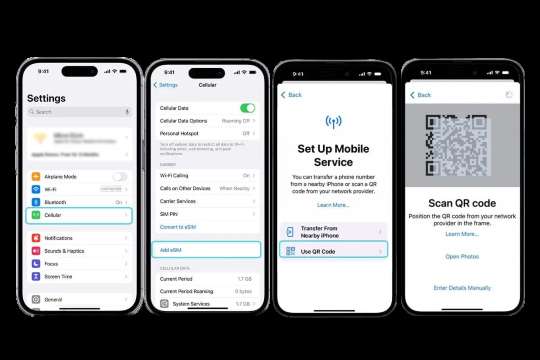
Image source: goglobal-esim.com
Deleting an eSIM doesn't always mean you'll be able to scan the same QR code to reinstall it. After deletion, some providers might let you reuse the original QR code, while others may require issuing a new eSIM or activation code—it all depends on the provider's policy.
If it's a travel eSIM purchased as a single package, we recommend reading the terms before deleting it, as some packages are tied to specific devices or have restrictions on reinstallation.
If it's your primary number that you're still using, don't delete the eSIM just because you want to stop using it temporarily. Disabling it temporarily is safer.
Should I delete my eSIM before selling or giving away my device?
If you're planning to sell, trade in, or pass on your phone, we recommend getting your eSIM sorted first. Here are the steps you should take:
- Make sure you've transferred your contacts or important data to your new device.
- Make sure the eSIM you're about to delete isn't one you still need to use.
- Delete an eSIM from your device
- Sign out of important accounts, such as your Apple Account or Google Account
- Turn off the device search feature by following the system steps.
- Back up the data you want to keep
- Factory reset your device before passing it on to someone else.
On iPhone, if you use the Erase All Content and Settings option, the system will give you the choice to either erase your eSIM along with it or keep it.
Affordable global eSIMs
See all attractions
 502205 booked


![[Singapore] Starhub | 5G Travel SIM Card | Multiple Package Options | Pick-up at Singapore Airport | EZLINK Transportation Card (Optional)](https://ak-d.tripcdn.com/images/0350i12000uau7j1x632A_C_568_320.jpg)


Things you shouldn't miss knowing before and after deleting an eSIM
An easy thing to remember is that "deleting an eSIM from your device" and "canceling your number" are two different things. Sometimes, when we delete an eSIM, it doesn't mean we've canceled that number; it just means that specific phone no longer has that number available to use.
If you really want to cancel your number or package, you'll need to handle that directly with your network provider.
1. What happens when you delete an eSIM? Is it risky?
It's not harmful to your phone, but the result is that the deleted eSIM will no longer be able to connect to the network on that mobile device.
If it's an expired travel eSIM, there's almost nothing to worry about. But if it's your main number or an active plan, we don't recommend deleting it unnecessarily. If you want to use it again, you might need to request a new eSIM from your mobile carrier, and in some cases, there may be conditions or fees depending on the provider.
2. Can I add an eSIM back after deleting it?
You can add a new eSIM if your phone and carrier support it. Installation methods may include scanning a QR code, downloading via the carrier's system, or following the activation steps provided by your provider.
Settings > Network & internet > SIMs > Add SIM > Set up an eSIM and follow the on-screen instructions
If it's the same number you just deleted, we recommend contacting your mobile carrier first, as they may need to issue a new QR code or eSIM profile for you.
3. How to cancel or deactivate an eSIM without deleting it
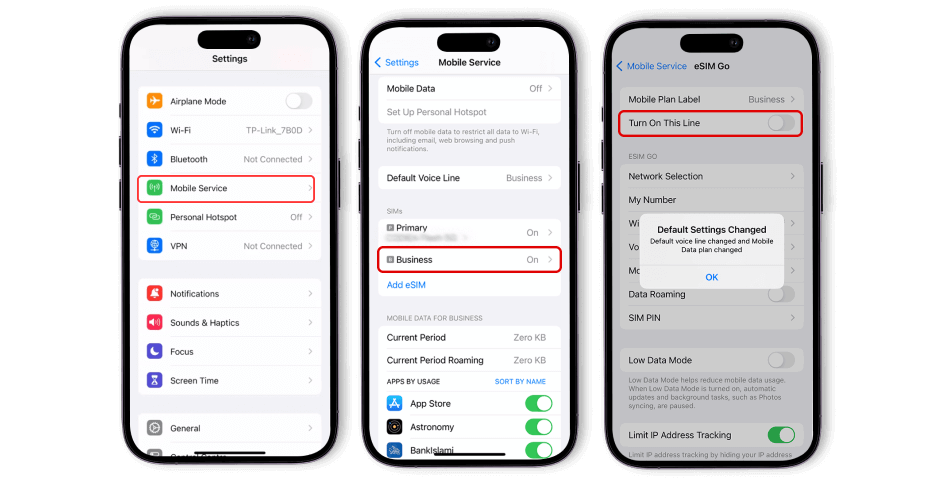
Image source: esimcard.com
If your goal is "I don't want to use it right now, but I might want to use it again later," we think temporarily turning off your eSIM is a better option than deleting it.
For example, if you have both a Australia eSIM and a Japanese eSIM on your phone, you can set the Japanese eSIM as your primary Data SIM while traveling in Japan, but keep the Australia eSIM active. Then, when you return to Australia, you can simply switch it back.
Go to Settings > Cellular > eSIM, then toggle off "Turn On This Line." This will temporarily disable that line, but the eSIM profile will remain on your device and won't be deleted.
This method is perfect for those traveling to multiple countries, as you won't need to reinstall an eSIM every time you want to switch back to a previous plan.
How to manage your eSIM before you leave and after you return from your trip
We recommend getting your eSIM sorted before you travel, especially if it's your first trip. Don't wait until you arrive at the airport—if the activation doesn't go smoothly, you won't have Wi-Fi to troubleshoot. Here’s a simple checklist we always use:
- Check first to see if your phone supports eSIM and is network unlocked.
- Purchase an eSIM that matches the country or region you're traveling to.
- Install your eSIM by following the provider's instructions
- Give your eSIM an easy-to-remember name, like "Japan Trip" or "Korea."
- Check your primary SIM's Data Roaming settings to avoid any unexpected charges.
- After returning to Australia, you can turn off or remove your travel eSIM once you're sure you won't need it anymore.
We recommend turning off the eSIM first before deciding whether to delete it, especially if there's a chance you might want to use the same plan again. This is because deleting the profile from your device might require you to request a new eSIM from your provider.
 China eSIM China (HK) eSIM
  Thailand eSIM
  Japan eSIM
  Vietnam eSIM
  India eSIM
  Malaysia eSIM
  South Korea eSIM
  Indonesia eSIM
  UK eSIM
  Singapore eSIM
  USA eSIM
  Italy eSIM
  Egypt eSIM
  Saudi Arabia eSIM
  Germany eSIM
  Canada eSIM
  Portugal eSIM
  Pakistan eSIM
  Aruba eSIM
  Switzerland eSIM
  Greece eSIM
  Israel eSIM
  Morocco eSIM
 A summary of how to delete an eSIM in 2026
Deleting an eSIM is easy, but you should double-check that it's really the number you want to remove. If you just want to stop using it temporarily, we recommend turning off the eSIM instead. As for expired travel eSIMs, you can go ahead and remove them from your device. And don't forget: deleting an eSIM is not the same as canceling your number or plan. If you need to cancel your service, you'll need to contact your provider directly.
Bali
Shanghai
Hong Kong
Tokyo
Seoul
See All Hotels















FAQs about How to delete an eSIM
-
How do I delete an eSIM from my iPhone?
-
How do I delete an eSIM on a Samsung Galaxy phone?
-
Can I recover a deleted eSIM?
-
Does deleting an eSIM cancel my plan?
-
Why is the 'Delete eSIM' option greyed out on my iPhone?
Disclaimer: This article has been provided by an individual contributor or third party platform. If there is any discrepancy regarding the copyright, please contact us directly and we will delete the content immediately.

Trending Searches
-
Trending Searches
-
Featured guides
-
Popular airlines and airports
- Trip.com Reviews
- Trip.com Cancellation Policy
- Trip.com Payment Methods
- Trip.com Phone Number
- Trip.com Check In
- Trip.com Ticket Issued Status
- Trip.com Change Passport
- Trip.com Customer Support
- Trip.com Membership
- Trip.com VIP Lounge Access
- Trip.com Baggage Allowance
- Trip.com Flight Ticket
- Trip.com Hotel Refund
- Trip.com Flight Change
- Trip.com Seat Selection
- Trip.com E-Receipt
- Trip.com E-Ticket
- Trip.com Flight Cancellation
- Trip Coins
- Badulla Travel Guide
- Canton Fair Autumn 2026 (140th Session)
- Hong Kong Airport Express
- Can you Bring Food on a Plane
- LV Louis Vuitton Extraordinary Journey
- Adelaide Metro
- When is the Cheapest Time to Book Flights
- Tsingtao Beer Museum
- Osaka Aquarium
- eSIM Hong Kong
- Bali Apps
- Beijing Metro Map
- Humble Administrator Garden
- Kunming Metro
- China Southern Airlines Check in
- Vietnam Visa
- Virgin Australia Flights
- Brisbane Airport
- Jetstar Flight
- Japan Airlines
- Sydney Airport
- Melbourne Airport
- Qantas Flights
- Air New Zealand Flights
- Emirates Flights
- Qatar Airways
- Singapore Airlines
- Perth Airport
- Indigo Flights
- Malaysia Airlines
- Hobart Airport
- Thai Airways
- Cathy Pacific
- Fiji Airways
- British Airways
- Darwin Airport
- Adelaide Airport
- United Airlines
- Airnorth
- Avalon Airport
- Tan Son Nhat Airport